Start dates and restrictions
Scheduling, and the two StationPlaylist formats
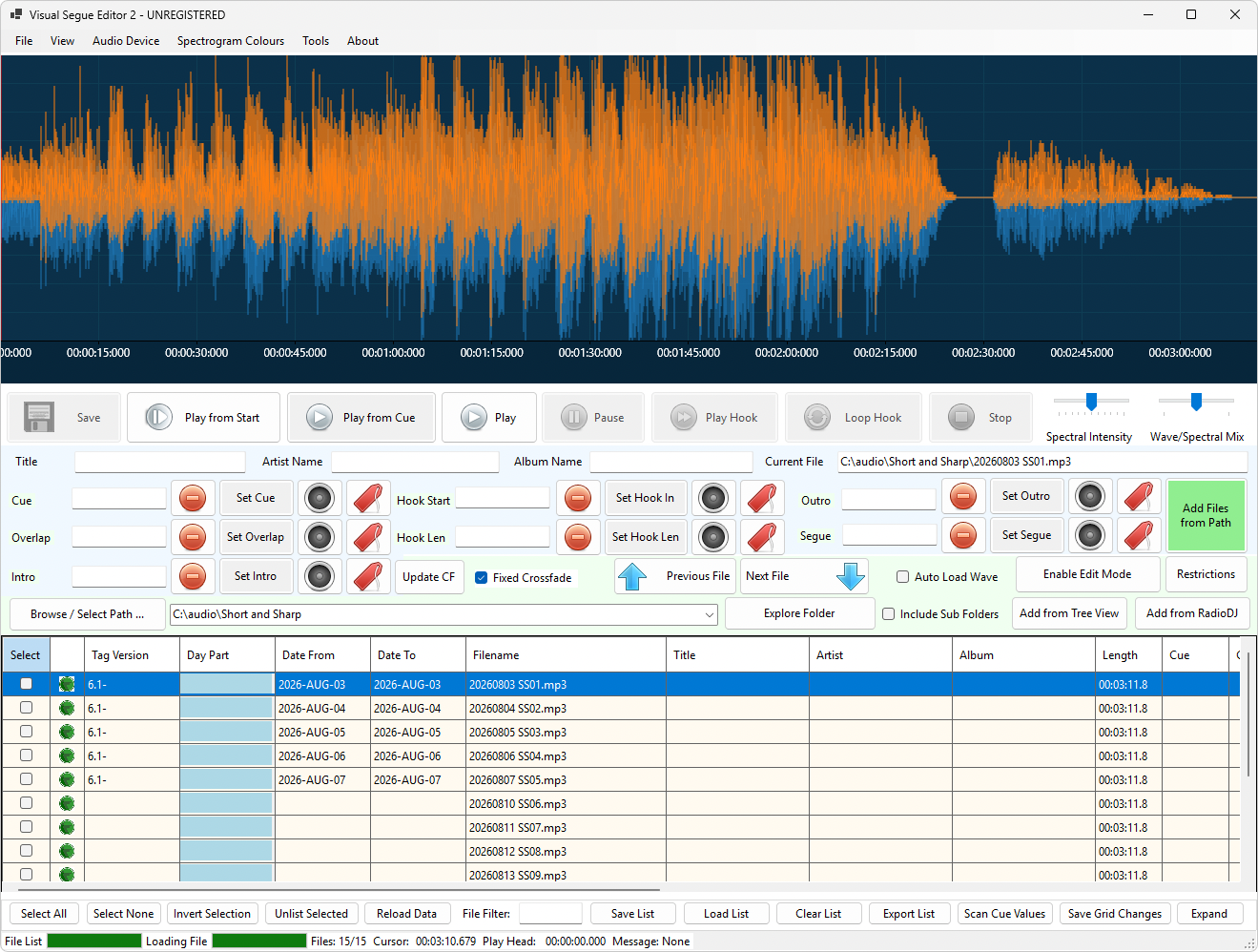
Select the files you want with their checkboxes, then click Restrictions to open the scheduling window.
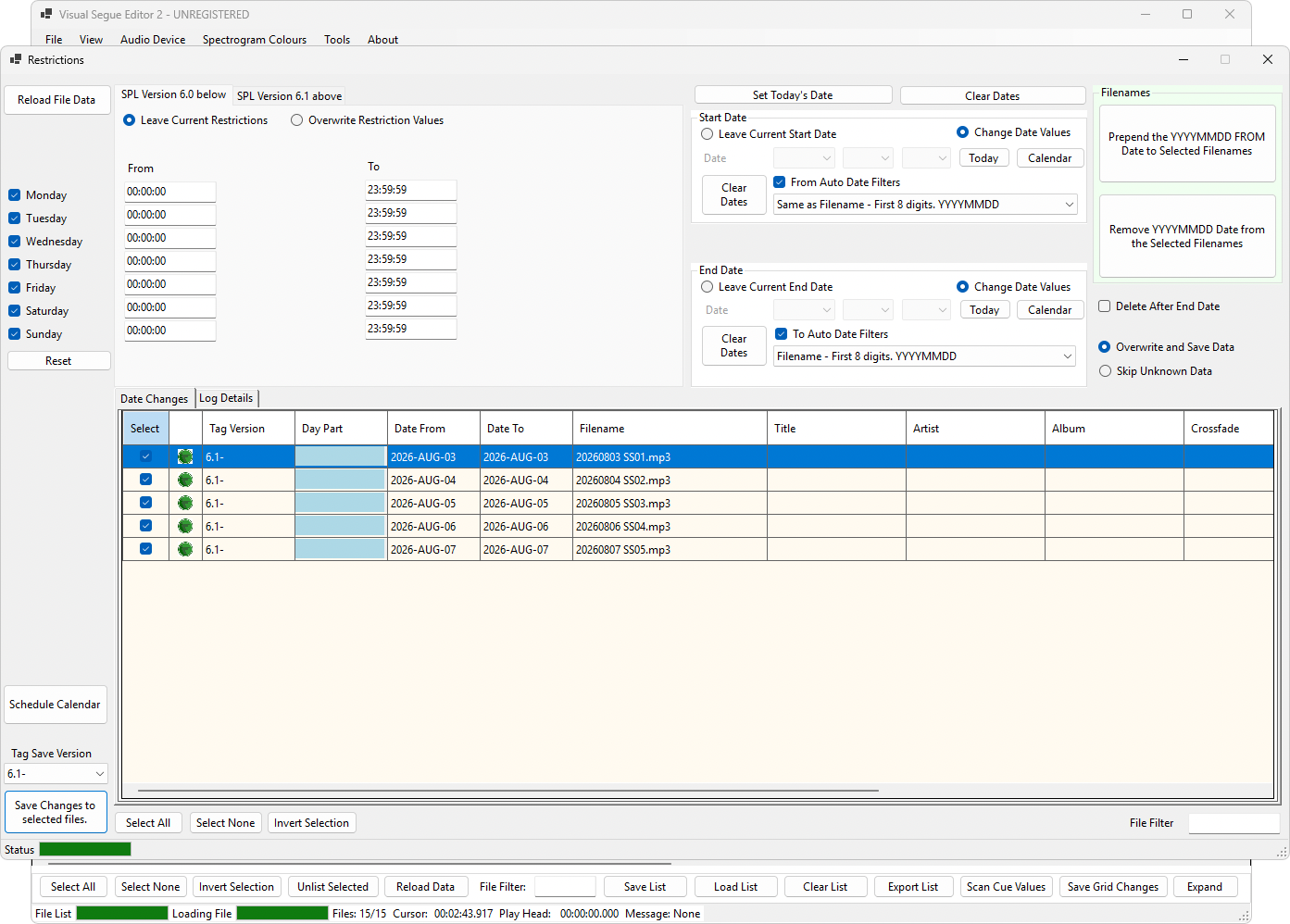
Here you can set when a piece of audio is allowed to play. These fields are for content that is only good for a set period — leave them blank and the audio simply plays whenever the rest of your rules allow.
Songs use them often: a new release held back until its release date, a chart track dated to a particular week, a Christmas single held until December. But this is not just for music. Syndicated programming is the clearest case of all — a syndicated show is almost always tied to specific dates, airing on a particular day or across a particular week and not before or after. Dated promos and trailers, seasonal features, and sponsored segments with a contract end date are the same.
| Setting | What it controls |
|---|---|
| Start date | The first day the audio may be played. |
| Stop date | The day it should stop being played. |
| Day-part restrictions | Which days and times it may play. A Christmas track might be allowed only in December; a breakfast-only feature might be blocked from every other hour. |
Year, month and day are set separately
The Start and the Stop are not single date boxes. Each is three separate drop-downs — year, month and day. So you are really setting six things: the year, month and day the audio starts, and the year, month and day it stops.
Every drop-down has a blank entry at the top, and blank means "any". That one idea is what makes these fields powerful, so it is worth being clear about it: whatever part you leave blank, StationPlaylist stops caring about — and if you leave the year blank, the restriction is no longer tied to a single year, so it comes round again every year.
The Start and the Stop are the two ends of a window: the audio may play from the Start up to the Stop, and the two do not have to name the same day. What you leave blank on both is what turns it into a recurring rule. Here is how the everyday cases are actually entered:
| To restrict to… | Set the Start to… | Set the Stop to… |
|---|---|---|
| The Christmas run, every year — on air through December up to Christmas Day, then off | Month DEC, day 01, year blank | Month DEC, day 25, year blank |
| A single date, every year — e.g. a birthday or anniversary spot | Month and day of that date, year blank | The same month and day, year blank |
| One exact date only, e.g. 25 December 2026 | Year 2026, month DEC, day 25 | Year 2026, month DEC, day 25 |
| A one-off dated run, e.g. a show that airs for one week | The first day, in full | The last day, in full |
Take the Christmas run. You want the music on air from the start of December up to Christmas, and back again next year without having to touch it. Set the Start to DEC 01 and the Stop to DEC 25, and leave the year blank on both. Because there is no year, it is not December of one particular year — it comes round every year, on the same two dates, with nothing to update twelve months later.
Setting the Start and Stop dates from the filename
As well as filling these drop-downs by hand, VSE2 can set them for you from the filename — handy when the date is a specific one.
The Start date and Stop date are the two most-used fields in this window,
and the biggest time-saver in this version is that you rarely have to type
them. If your files are named with the date at the front — for example
20260301_sunday_show.wav — VSE2 can read that date straight
out of the name and fill the fields for you, for every checked file at once.
This is especially handy for dated, time-limited content like syndicated
programming, where a whole run of episodes arrives named by broadcast date.
The date in the name has to be in YYYYMMDD order: four
digits of year, two of month, two of day. So 20260301 is the 1st
of March 2026. That order is deliberate — it is the one date layout that
cannot be misread (is "03/01" the 1st of March or the 3rd of January?) and it
is the eight digits VSE2 looks for at the start of the filename.
Next to the Start and Stop fields is a drop-down for where each date should come from:
| Choice | What it does |
|---|---|
| Filename – First 8 digits. YYYYMMDD | Takes the date from the first eight digits of the name. This is the usual Start date. |
| Filename – 2nd set of 8 digits. YYYYMMDD | For files that carry two dates in the name — a start and a stop. Takes the second one. |
| +1 / +2 / +6 Days from Filename | Takes the date from the front of the name and adds that many days. This is how you set a Stop date from a Start date. |
The weekly syndicated show. A show that airs on a Sunday and runs for the week wants a Start date of that Sunday and a Stop date six days later, on the Saturday. Set Start to Filename – First 8 digits and Stop to +6 Days from Filename, and a whole folder of dated episodes gets both dates in one go — each Stop date correctly following its own file's date. No typing, and nothing to get wrong.
The two StationPlaylist formats
This is the one part of VSE2 worth reading carefully, because getting it wrong can quietly lose information.
StationPlaylist stores day-part restrictions in one of two ways, and they are not the same. Which one VSE2 writes is set by the version drop-down at the bottom of the window.
| SPL 6.0 and below | SPL 6.1 and above | |
|---|---|---|
| How it stores times | One start time and one end time per day. | An hour-by-hour grid. You check each individual hour of each day. |
| Example | "Mondays, 9am to 4pm." | "Mondays at 9, 10, 2 and 3" — which is 9–11am and 2–4pm. Two separate windows in one day. |
The older format simply has no way to express two separate windows in a day.
Why this matters
Whichever version the drop-down says is what gets written — regardless of what format a song is already in.
That is deliberate: your station runs one version of StationPlaylist, and all your files should match it. But it means saving can convert a song from one format to the other.
Converting to the older format loses information.
"Mondays at 9, 10, 2 and 3" cannot be stored in the older format. It gets flattened into "Mondays, 9am to 4pm" — which now includes 11am, 12pm and 1pm, when the song was never meant to play.
This cannot be undone.
VSE2 warns you before it does this, and the warning defaults to No. If you see it, read it.
Going the other way — older format to newer — does not lose any information. But there is a second thing to watch, and it is the more common trap:
Write the format your own StationPlaylist can actually read.
A newer StationPlaylist will happily read the older format — upgrading is safe, and files you tagged years ago keep working. The problem is the other direction. If your station is still on an older version and you set the drop-down to the newer format, StationPlaylist may not understand the restriction at all — it can simply ignore it, and the song plays with no restriction when you thought it had one.
No harm comes to the file, and nothing is lost — but the restriction may not do anything until you re-save it in the format your version reads.
The short version: match the drop-down to the version your station runs. A newer format on an older system is the mistake to avoid.
Leave or overwrite
| Leave Current Restrictions | Keeps whatever the file already has. |
| Overwrite Restriction Values | Replaces it with what you have set in this window. |
If a file is in a different format from the drop-down, "Leave" is not possible — the file cannot keep restrictions it has no way of storing — and VSE2 will tell you so.
If in doubt: find out which version of StationPlaylist your station runs, set the drop-down to match, and then leave it alone.