Visual Segue Editor is a waveform editor built for radio broadcast audio. See your cue points on the waveform, edit them visually, bulk-assign air dates to hundreds of files at once. For Program Directors, Music Directors, and broadcast teams.
Download →
Features
FAQ
A complete refresh with spectral analysis, a huge performance overhaul and scheduling features.
The essential broadcast audio metadata editor - built specifically for StationPlaylist.
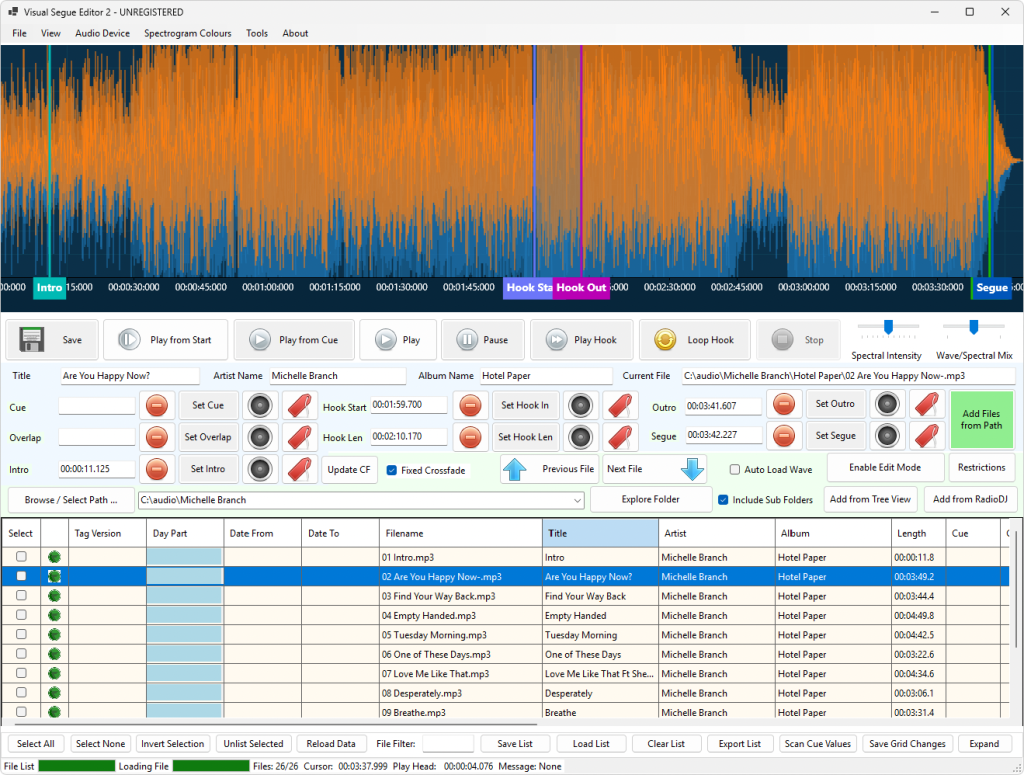
See your waveform, see your cue points. Click to place markers or play and hit the tag buttons. Drag to move them.
Zoom in on the exact moment a beat hits or a vocal starts. Scroll wheel zooms. Get the precision broadcast needs.
Cue, Overlap, Intro, Hook Start, Hook Length, Outro, Segue. Tag them, see them, hear them play back.
Frequency-domain view: see where the bass hits, where vocals peak, where the silence is. 11 color schemes, adjustable intensity.
Have a hundred new adds with YYYYMMDD in the filename? One click sets air dates, stop dates, date ranges — for hundreds of files at once.
Audio Device menu lists all outputs. Pick one, switch mid-playback. WASAPI, DirectSound, MME, ASIO all supported. Your choice stays saved.
Search by filename right in the list. Add files from multiple paths. Browse folders with a tree. Load subfolders automatically.
See when your files will air. Color-coded by air date. Spot scheduling conflicts before they happen.
Optimized block-read with min/max binning. 1-hour file loads in ~15 seconds. Far lighter on memory.
Change artist, title, album right in the list. No dialog boxes. Fast for bulk edits.
Right-click a file, open it in Audacity, Audition, iZotope RX, or any app you configure.
Reads and writes StationPlaylist's tag format. Full support for day-part restrictions.
Browse your RadioDJ library, see at a glance which tracks are already cued, and edit them on the waveform. Your cue points go back into the RadioDJ database, not into the audio file.
Scan hundreds of files for Cue and Outro audio levels in one pass. Set thresholds and let VSE find the best points automatically.
WAV, MP3, WMA, M4A, AAC, FLAC and MP2 — including RCS Master Control WAV files, decoded and played back automatically.
Portable mode keeps settings, licence and logs in VSE2's own folder and writes nothing to the host PC. Move between studios with one licence.
Import Zetta cue points and convert them to StationPlaylist's format, or convert the audio to 320kbps MP3 with the cue points written on. Originals are never changed.
What's new in v2.0, and how it compares to v1.x and TrackTool.
| Feature | v1.x | v2.0 | TrackTool |
|---|---|---|---|
| Visual cue editing | ✓ | ✓ Enhanced | ✓ 6.2+ |
| Spectral view (11 color schemes) | — | ✓ NEW | — |
| Four view modes (Wave/Spectral/Overlay/Split) | — | ✓ NEW | — |
| Audio device selection | — | ✓ NEW | ✓ |
| Bulk scan for audio levels (Cue/Outro) | — | ✓ NEW | ✓ |
| Gain scan analysis | — | — | ✓ |
| Date and time restrictions | — | ✓ NEW | ✓ |
| Bulk date assignments | — | ✓ NEW | ✓ |
| Smart Bulk date assignments | — | ✓ NEW | - |
| Calendar to show air dates | — | ✓ NEW | — |
| Right-click open in external apps | — | ✓ NEW | — |
| Inline editing (artist/title/album) | — | ✓ NEW | — |
| Partial Filename list filtering | — | ✓ NEW | — |
| Folder tree browsing | — | ✓ NEW | — |
| Save and load file lists | — | ✓ NEW | — |
| Export file list to CSV | — | ✓ NEW | — |
| Remove SPL tags | — | ✓ NEW | — |
| Import Zetta basic metadata to SPL | — | ✓ NEW | — |
| Edit cue points from a RadioDJ library | — | ✓ NEWCue points only — not RadioDJ's other metadata | — |
| Save cue points to the RadioDJ database | — | ✓ NEWAudio files left untouched | — |
| SPL metadata support | — | only Partial | ✓ Native |
| 20 last-used folders | — | ✓ NEW | N/A |
| Previous/next buttons | — | ✓ NEW | — |
| Granular checkbox file selection | — | ✓ NEW | — |
| Day-part restrictions | — | ✓ NEW | ✓ Native |
| Day-part restriction templates (SPL 6.1+) | — | ✓ NEW | — |
| SPL compatibility | ✓ 6.0- | ✓ 6.1+ (enhanced) | ✓ Native |
| Load performance (1-hour file) | ~60 seconds | ~15 seconds4x faster | N/A |
| Memory usage | Too much | Massively improved | N/A |
| Supported audio formats | MP3 | WAV, MP3, WMA, M4A, AAC, FLAC, MP2, RCS Master Control WAV (MPEG Layer 2) | SPL formats |
| Best for | MP3 Visual cue editing | Audio Visual Cue editing, spectral analysis, bulk workflows, date management | Algorithmic bulk detection, advanced BPM analysis, SPL specific things, extended metadata, historical spins and more. |
Visual Segue Editor v2 is built for StationPlaylist. It's a companion tool, not a replacement for TrackTool. Many stations use both: TrackTool for algorithmic bulk detection and advanced BPM analysis, VSE2 for visual cue editing, spectral analysis and quick bulk date assignment. Together they make a complete broadcast audio workflow.
The same applies to RadioDJ. VSE2 gives you a proper waveform and spectral view for setting cue points, and writes them back to the RadioDJ database — but only the cue points. Artist, title, album, air dates, day-part restrictions, gain and everything else in your library stay RadioDJ's job.
Any broadcast radio station or production facility using StationPlaylist.
Prep your weekly music adds. Visual cue editing cuts the time in half. See exactly what you're getting before it goes on air.
Set hooks and intro points across your rotation. Bulk date assignment means no more hand-entry of dates.
Quick turnaround on new content. Edit markers visually, validate against the waveform, save to StationPlaylist. Done.
Manage hundreds of files across multiple machines. Calendar view shows air dates at a glance. Spot gaps in your schedule.
Five minutes to your first cue point.
Click "Select Path" and choose your music folder. Check "Load subfolders" if needed. Click Load.
Double-click a filename in the list. The waveform loads in seconds.
Click the waveform where you want a cue. Or play and hit the tag buttons when you hear the spot.
Hover over a marker and drag left/right to fine-tune. Zoom in for sample-level precision.
Click Save. Tags are written back to the file and synced to StationPlaylist on your next import.
Common questions about Visual Segue Editor.
WAV, MP3, WMA, M4A, AAC, FLAC, and MP2 — including RCS Master Control WAV (MPEG Layer 2) files, which are decoded and played back automatically. Everything you use in broadcast.
Yes. VSE reads and writes StationPlaylist's native tag format. Open a file in StationPlaylist, work on it in VSE, save it back. StationPlaylist picks up the changes on the next import. 100% compatible with SPL 6.1 and later.
Yes. VSE never overwrites your file in place. When you save, it builds the complete updated file alongside the original and swaps it in only once it is written in full. If a save is interrupted — a power cut, a network drop, a failing drive — your original file is left untouched, not half-written. Every existing tag on the file is preserved exactly; only the cue points you edited change.
Yes, for cue points. Configure VSE to see your RadioDJ database in settings, and pick tracks from your library. This will make it easy to edit Cue, Intro, Hook and Segue on the waveform. Saving writes straight back to the RadioDJ database. Your audio files are not modified at all.
Cue points are the only thing VSE changes in RadioDJ. Artist, title, album, air dates and day-part restrictions are left alone — edit those in RadioDJ itself.
Yes. One licence covers up to 3 Windows installs in a single location — your production computer, your scheduler, and your PD's office are all covered.
Low. If you've used a DAW or audio editor before, you'll be placing cue points in minutes. The interface is straightforward.
No, but it's a solid alternative for many workflows. VSE now does bulk Cue and Outro audio level scanning — it finds good points automatically and you can visually confirm or refine them on the waveform. TrackTool has more advanced detection algorithms and BPM calculation, which some stations prefer. Many use both: TrackTool for algorithmic bulk scanning, VSE for visual editing and confirmation.
Yes, and you do not have to install it first. Unzip the download, then unzip the VisualSegueEditorv2.zip inside it straight onto your stick — that is the program itself, no installer needed. Add an empty file called portable.txt next to VisualSegueEditorv2.exe and VSE2 keeps its settings, licence and logs in its own folder, writing nothing to the computer it is running on. The licence travels with the stick, so you register once and it counts as a single installation however many machines you plug it into.
Check the download page for current pricing. One-time purchase, no subscription. A free demo version lets you save five files per session so you can test it before buying.
No. All v1.x users get v2 for free and can use their existing serial number.
Yes, through the Audio Device menu. Pick any output (WASAPI, DirectSound, MME, ASIO), even during playback. Your choice is saved for next time.
Open a support ticket, or contact us on Facebook. We respond quickly and work hard to fix issues.
We wanted to make sure v2 was a complete refresh, not just a minor update. The new spectral view, bulk scanning, and RadioDJ support took time to implement and test. We also rewrote the waveform engine for speed and memory efficiency. We ended up writing our own metadata encoding/decoding engine to support StationPlaylist, and because of that we were able to add support for additional file formats instead of just MP3. Another thing we had to implement was the date restrictions (which had a lot of work done through trial and error and observation). It was a constant pain point that we needed to solve for ourselves - to allow for mass date changes that fitted in our own workflow. (yyyymmdd date parsing is our jam - just saying.) It'd been battle-tested secretly for a long while, and we think it was worth the wait. We hope you like it.
Free demo: save five files per session. Full licence: unlimited saves. Download, test, buy if it works for you.
Minimum requirements: Windows 10 64-bit, .NET 8.0 Runtime, screen 1024x768 or larger.
Unzip the download and run the setup.exe file. Windows may show a security warning (the app is not code-signed); that's normal and you can ignore it. Make sure you're not running from a read-only path, as registration requires write access.