Getting started
Your first five minutes with Visual Segue Editor
Never used Visual Segue Editor before? Start here. In about five minutes you will have set and saved your first cue points.
If you are looking for how to install the program or where it keeps your settings, see the README that came with it. To run it from a USB stick, see Running from a USB stick.
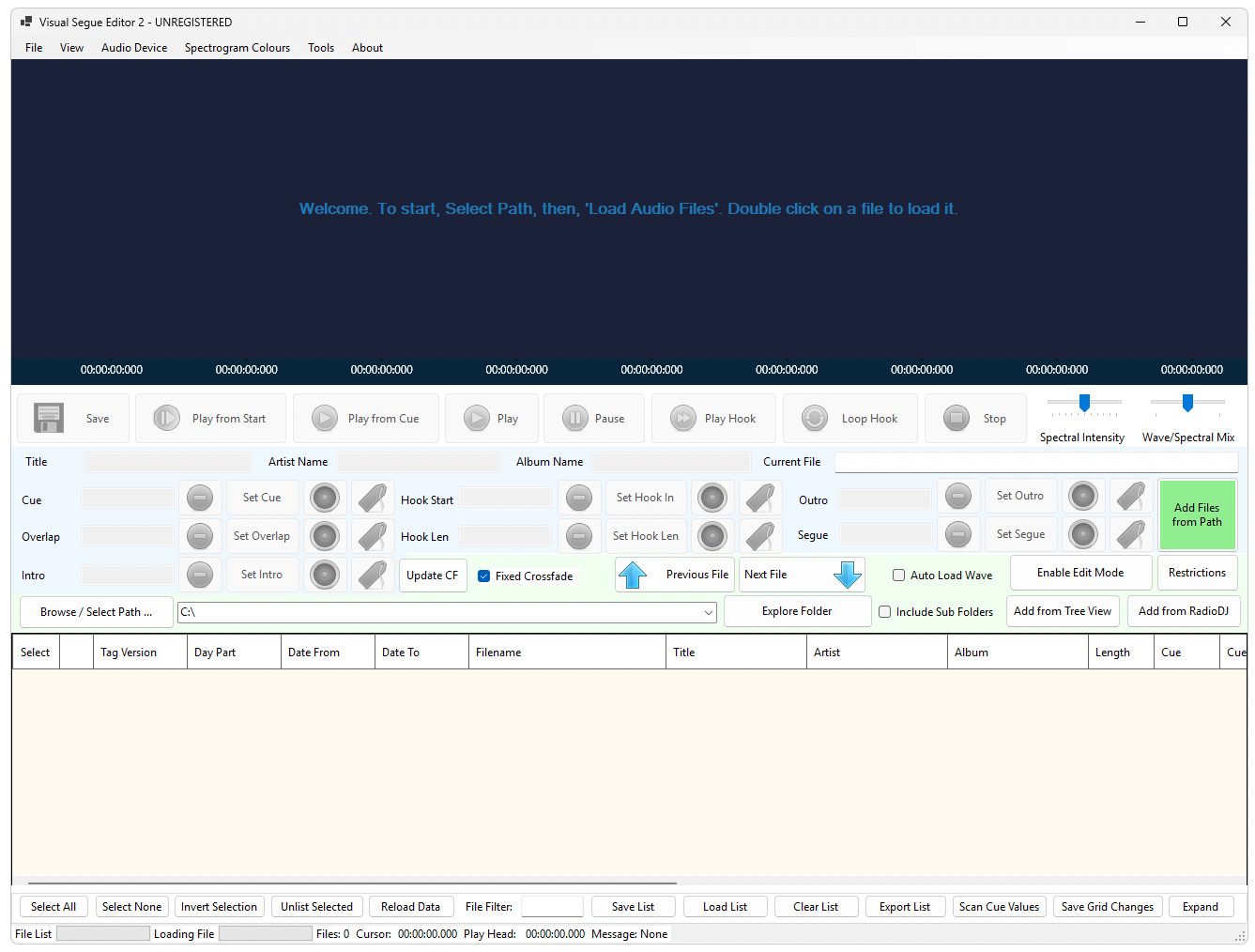
1 Point VSE2 at your music
Click Browse / Select Path ... and find the folder your songs are in. The folder you picked appears in the box beside the button.
If your music is spread across sub-folders, check Include Sub Folders.
2 Load the songs in
Now click the green Add Files from Path button.
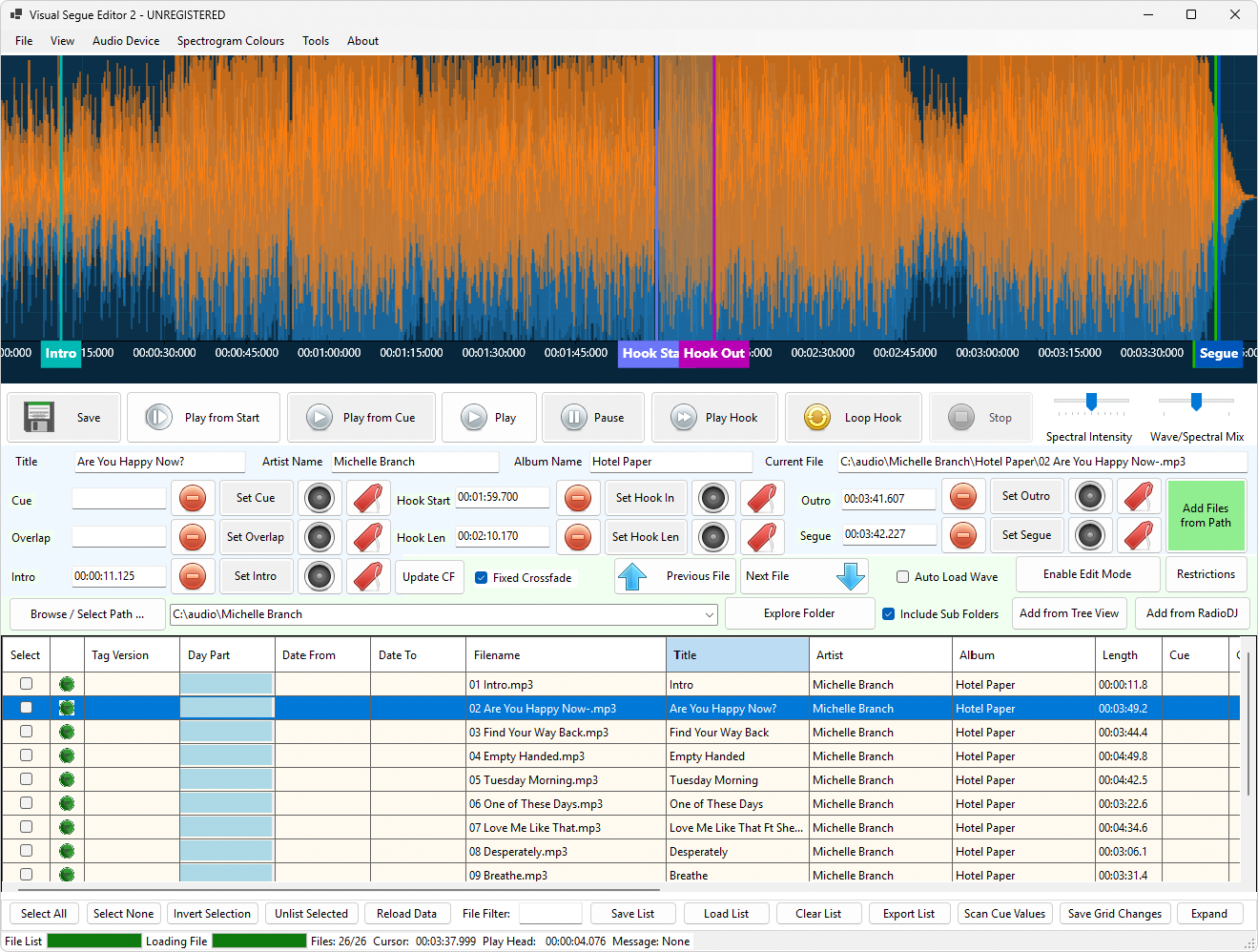
The songs appear in the list along the bottom of the window.
This is the step everyone misses once. Choosing the folder does not load it. The green button is what actually brings the songs in.

3 Open a song
Double-click any song in the list.
Its waveform — the picture of the sound — appears in the middle of the window. Any cue points the song already has are drawn on top of it as coloured vertical lines.
4 Have a listen
Press Play. The playhead moves across the waveform as the song plays.
Click anywhere on the waveform to move the playhead there, then press Play to start from that spot — handy for jumping straight to the part you care about instead of sitting through the intro every time.
5 Set your first cue point
Find the moment the vocal starts. Click the waveform at that point, then click Set Intro.
A line appears where you clicked. That is your Intro marker — it tells your announcer exactly how long they have to talk over the opening.
6 Nudge it until it is right
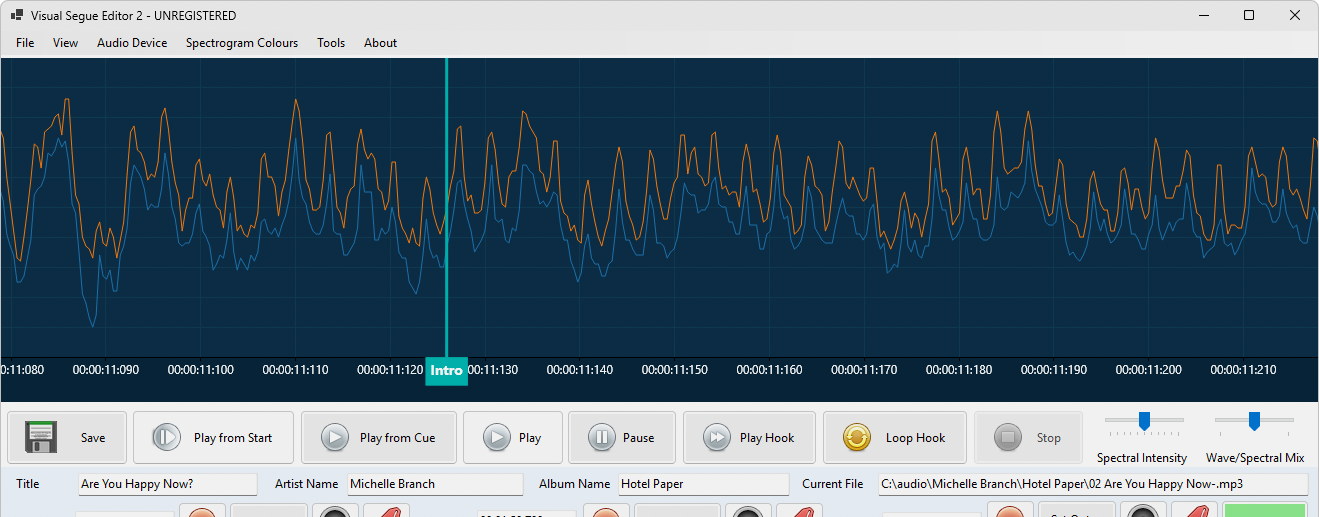
Hover over the line you just made and drag it left or right.
Scroll the mouse wheel to zoom in. You can go right down to individual samples — far more precision than radio will ever need, but it is there if you want it.
7 Save
The Intro label has turned pink. That is VSE2 reminding you there are unsaved changes.
Click Save. The pink goes away, and the cue point is written into the song file. StationPlaylist will pick it up the next time it imports.
That is the whole job
Everything else in this guide is a variation on those seven steps: doing it to a hundred songs at once, letting VSE2 find the cue points for you, setting start dates, and so on.
Your files are safe. VSE2 never writes over a song directly. It builds the updated file alongside the original and only swaps it in once it is complete. If the power goes out mid-save, your original is untouched.