Loading your music
Three ways to get songs into the list
There are three ways to get songs into the list, and you can mix all three in the same list.
From a folder — the usual way
- Click Browse / Select Path ... and choose the folder.
- Check Include Sub Folders if you need to.
- Click the green Add Files from Path button.
Two separate steps, and it catches everybody once: picking the folder does not load it. The green button does.
VSE2 remembers the last 20 folders you used, so the ones you work with often are always a click away in the drop-down.
Explore Folder simply opens the folder in Windows, if you want to look at it. It does not load anything.
From the tree view
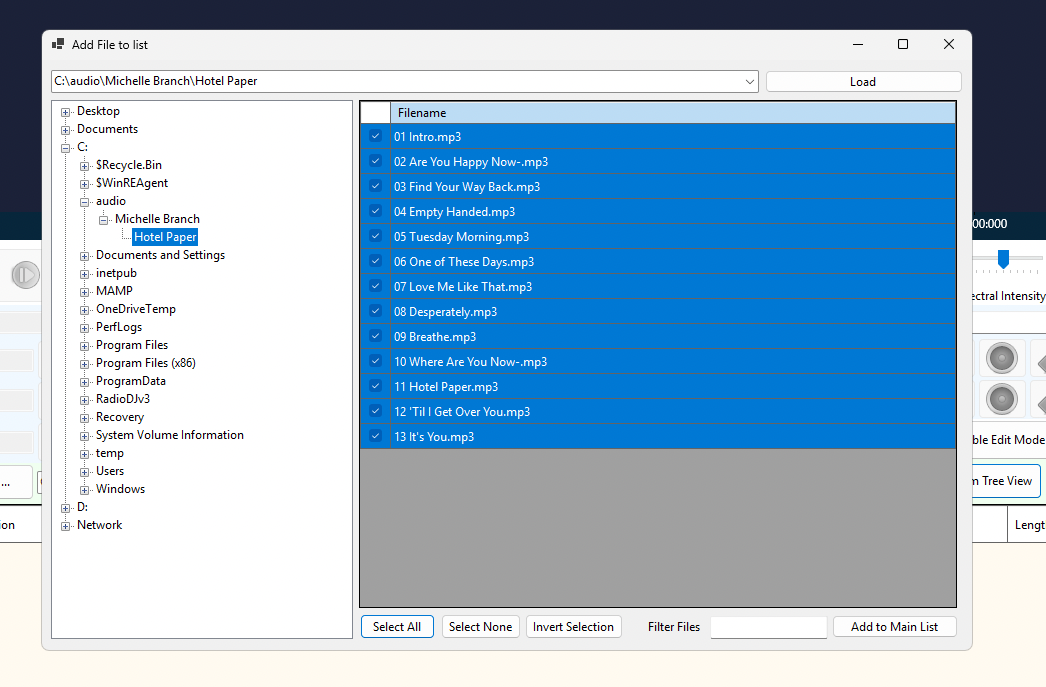
Add from Tree View opens a folder tree, so you can browse around — including network drives and other computers on your station's network. Select the songs you want with their checkboxes and add them.
If a network folder needs a username and password, VSE2 will ask, and keep asking until you get it right or press Cancel.
From RadioDJ
If your station runs RadioDJ, VSE2 can pull songs straight from its library. See Using VSE2 with RadioDJ.
The Source column tells you where each song came from — and, more importantly, where its cue points will be saved when you press Save.
Managing the list
| Button | What it does |
|---|---|
| Select All / Select None / Invert Selection | Check or uncheck songs, ready for a bulk action. |
| Unlist Selected | Removes songs from the list. It does not delete the file. |
| Clear List | Empties the list. |
| Save List / Load List | Come back to the same set of songs another day. |
| Export List | Saves the list as a spreadsheet file. |
| Previous File / Next File | Step through the songs one at a time. |
| Expand | Makes the list bigger. |
You can also type in the filter box to show only songs whose name contains what you typed.