
Description
Notice: It’s not easy writing software. If you find any problems or have any suggestions, please contact me directly on Facebook and I’ll work hard to fix them.Please read the minimum requirements of the software as well to make sure you meet them.
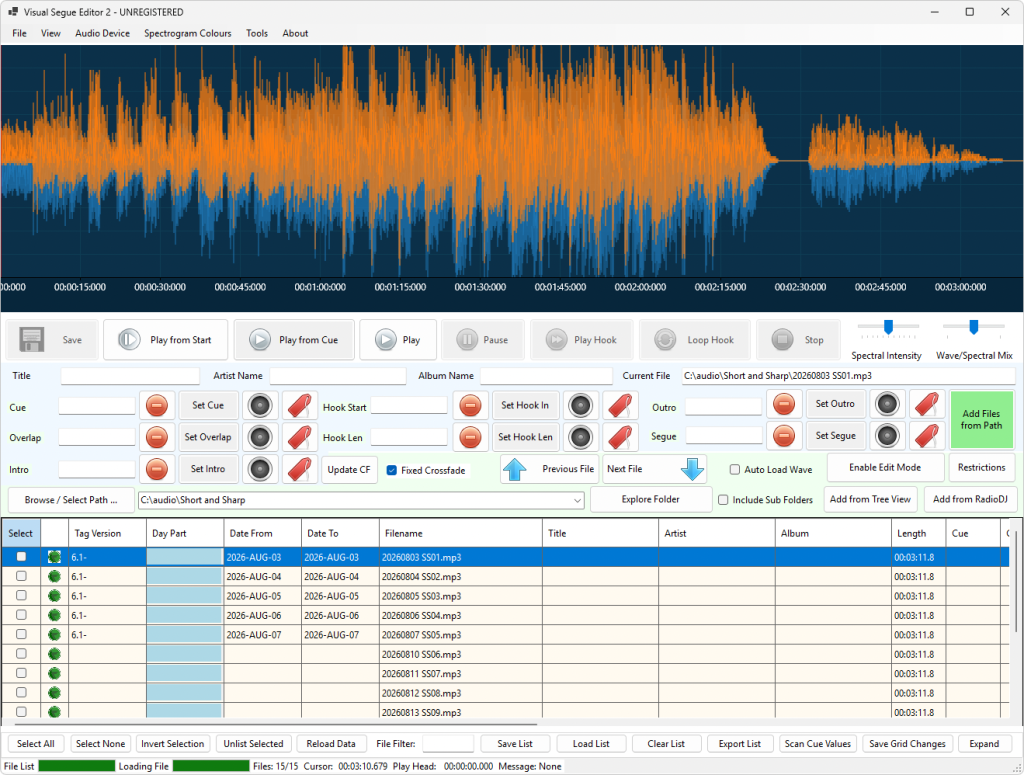
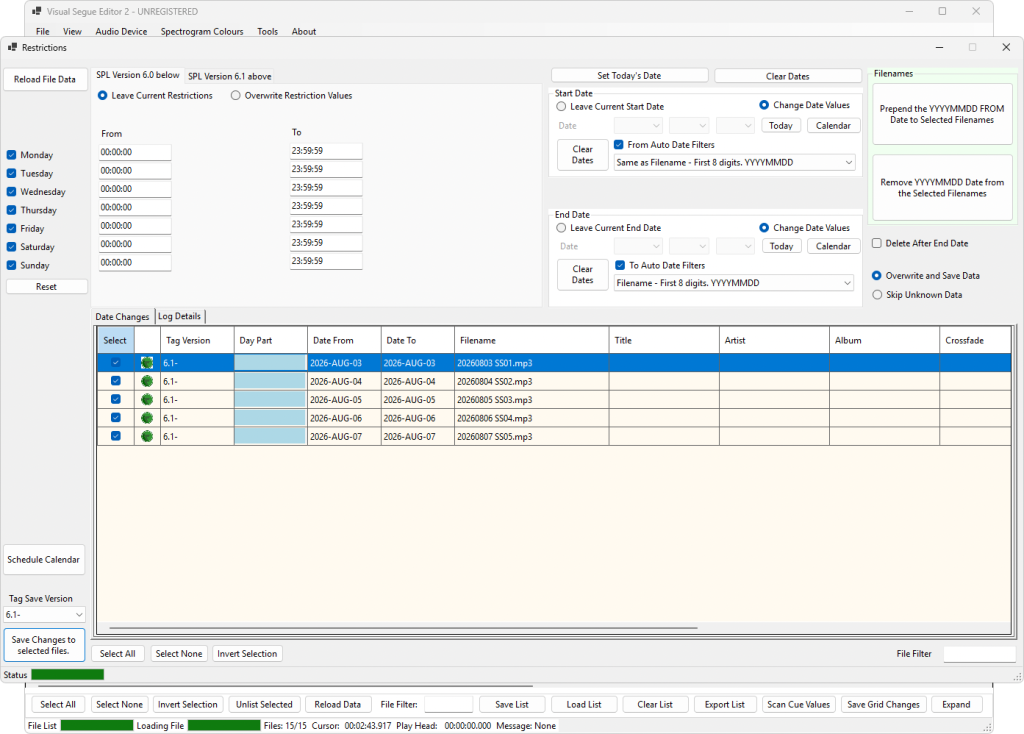
This new version has focused on refinement, and repetitive date driven tasks – allowing multiple date ranges being set for hundreds of files in seconds – not hours.

Minimum Requirements:
- Windows 10
- .NET 8.0 (updated) (Run-time download)
- Mouse/Trackpad for zooming
- Screen resolution larger than 1024×768
- 64-bit version of Windows
- Internet connection for online registration
Features:
-
- The following markers are stored:
– Cue
– Overlap
– Intro
– Hook Start
– Hook Length
– Outro
– Segue - Basic artist and title information can be edited
- 64-bit for large files
- Very fast zooming in and out
- Easy to use
- Designed to be 100% compatible with StationPlaylist Creator and StationPlaylist Studio
- Zoom right to the sample level for absolute precision
- Compatible with smaller screens at 1024×768 or larger
- Inline-editing of Artist, Title and Album (new)
- Date and time restrictions (new)
- Date Range Editor (new)
- Bulk Date Filename re-namer (new)
- Day-Part Restriction Templates for SPL 6.1+ (new)
- Bulk Date assignments (new)
- Set Date Restrictions by Filename in Bulk assignment (new)
- Right-Click Open Files in… Customisable programs including TrackTool and other apps, such as Audition, Audacity, Izotope RX etc. (new)
- Version 6.0 and earlier of Restrictions supported (Updated)
- SPL Version 6.1 of Restrictions supported (new)
- File name filtering via search (new)
- Bulk Scan for audio marker levels of Cue and Outro (new)
- Export File List to CSV (new)
- Remove SPL Tags (all or specific fields) (new)
- Copy filename location to clipboard (new)
- Navigate to a file’s path with Explorer (new)
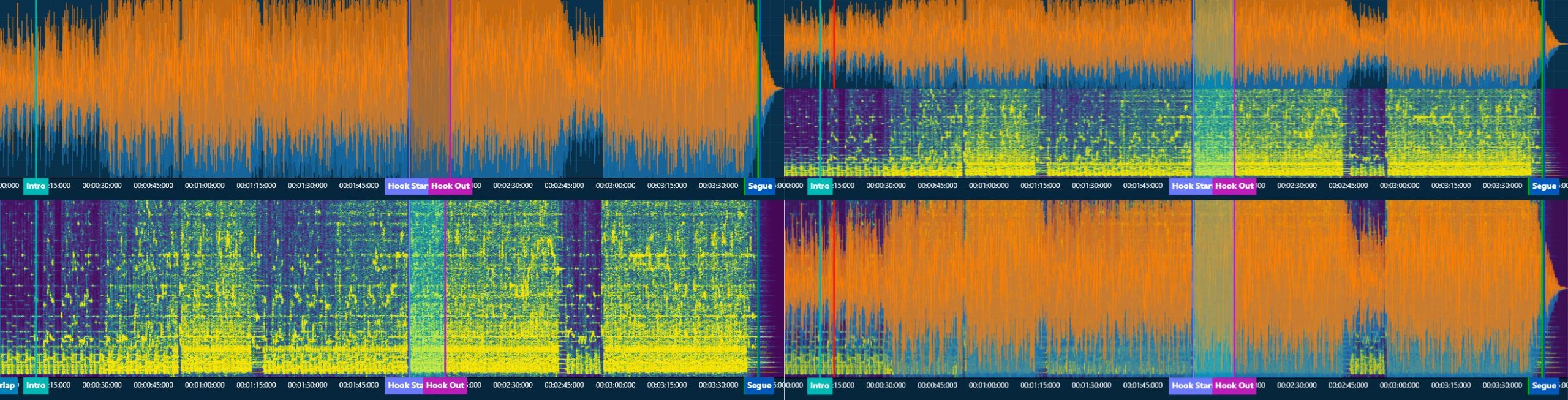
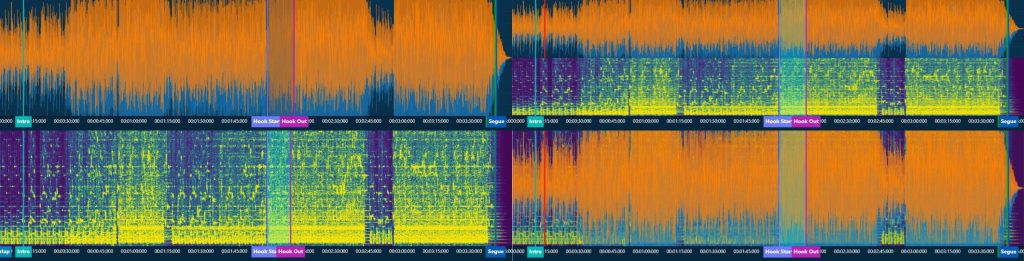
- Spectral View (new)
- 11 colour schemes (new)
- Intensity adjustment (new)
- Bulk convert Zetta metadata to SPL format (new)
- Enhanced Tag Error checking (new)
- Custom Tag Engine (new)
- 20 Last used Folders (new)
- Previous and Next Buttons (new)
- Granular check box File Selection (new)
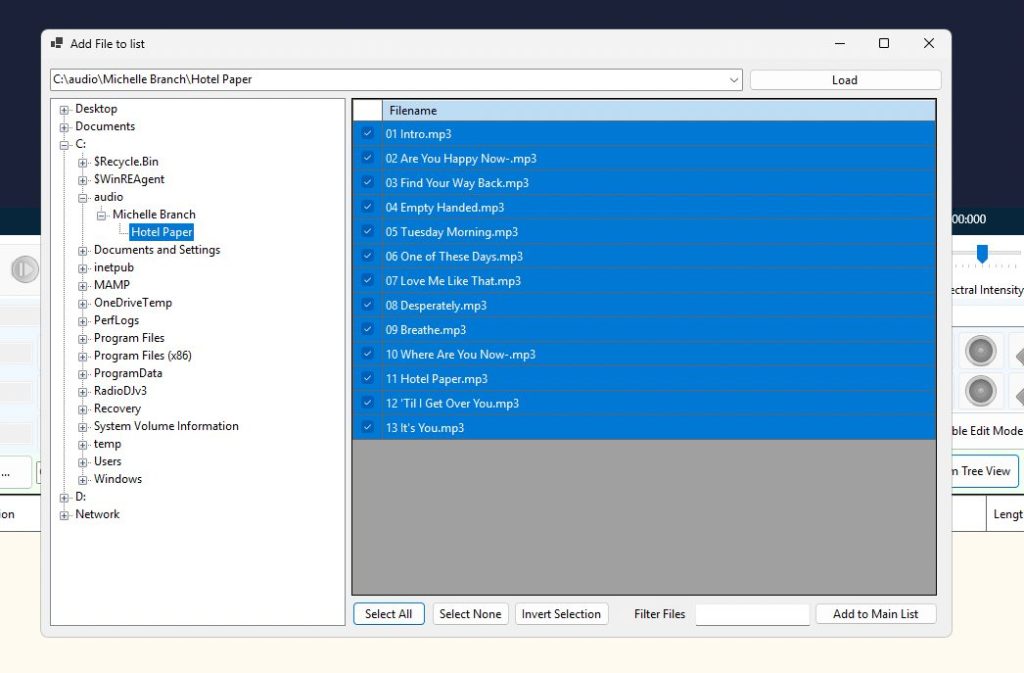
- Folder Tree browsing to add files (new)
- Calendar to show when files will air (new)
- Filename filtering in the listings (new)
- Ability to add files to the list, rather than just one directory at a time.(new)
- Can do basic segues for RadioDJ (new)
- The following markers are stored:
VSE2 supports the following file formats: wav, mp3, wma, m4a, aac, flac and mp2.
Where to start.
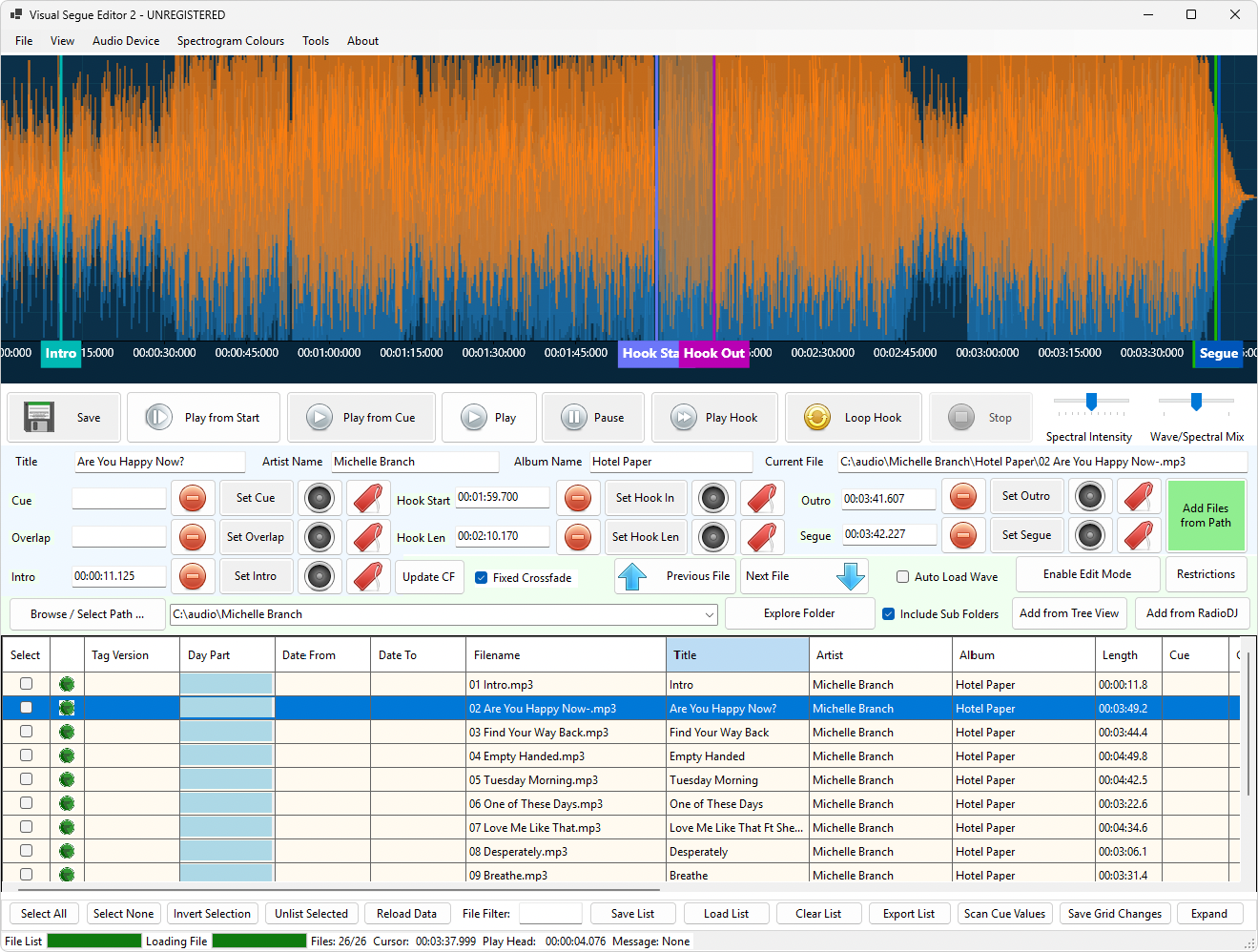
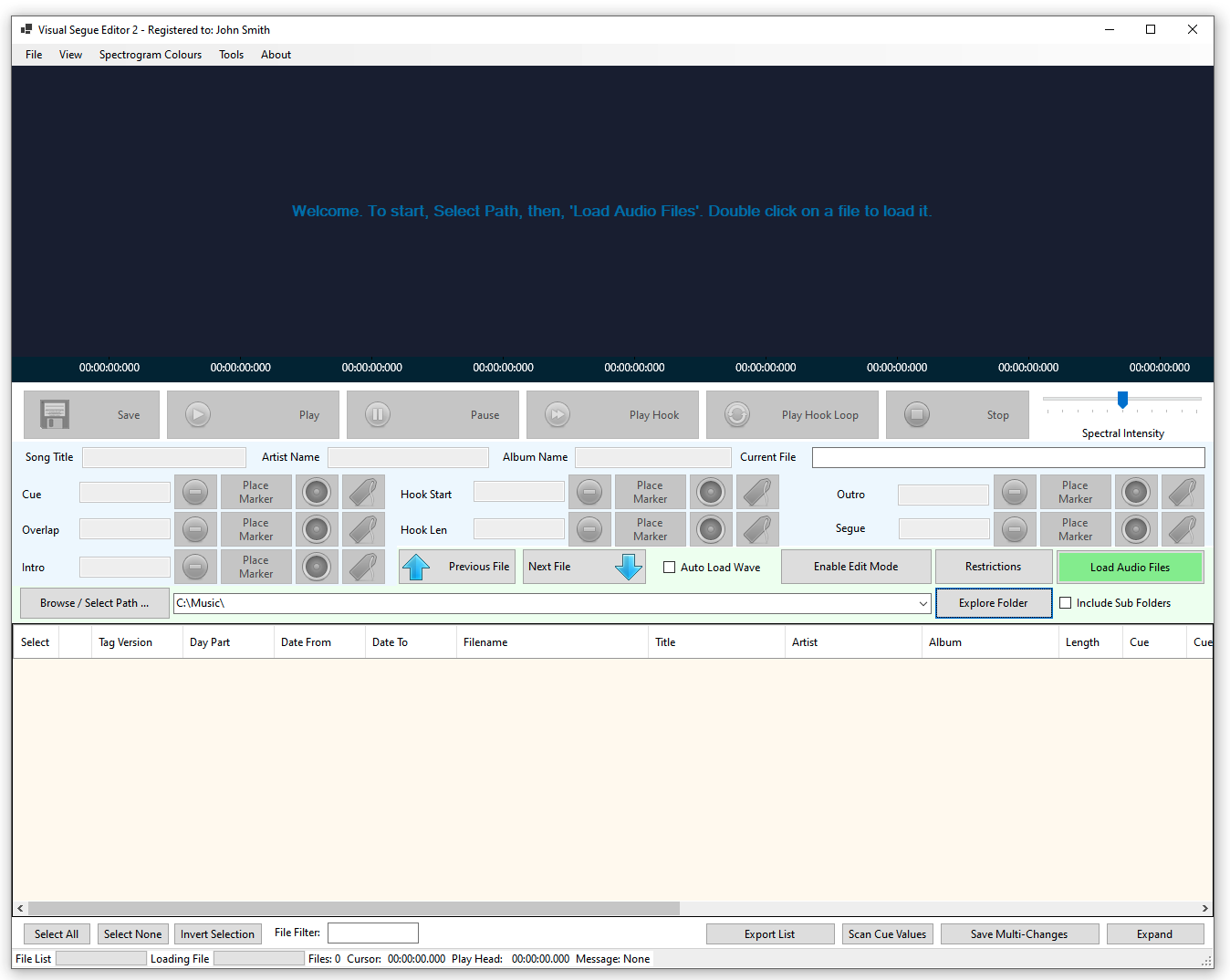
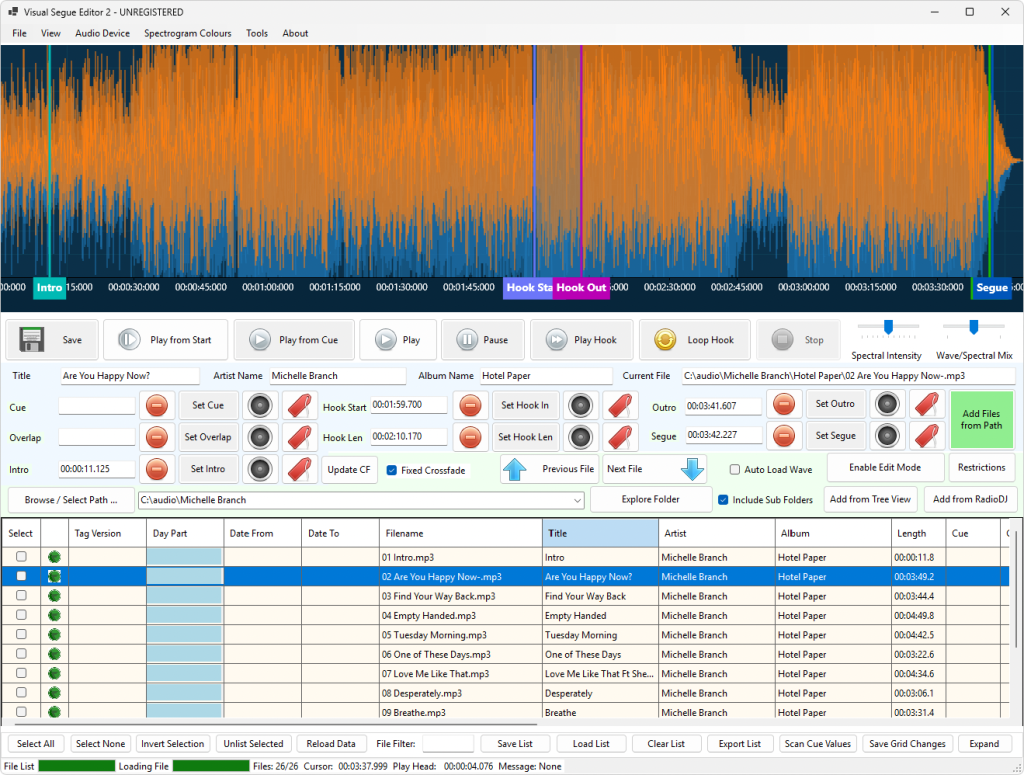
When the program loads, click on “Select Path” and then choose the appropriate folder location. Click on “Load” and your files will start to appear. If you would like to load the sub folders in the chosen path, the check the box and “Load” the files.
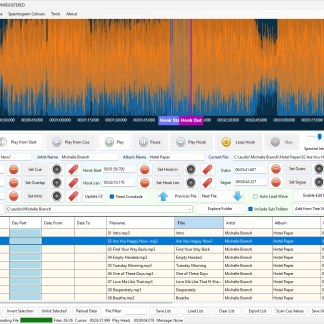
When the list is loaded, double click a chosen filename to load the waveform. Markers can be added easy by pressing on the “Place Marker” buttons, and clicking on the waveform, or by playing the audio and clicking on the appropriate ‘tag’ icon.
You can zoom in on the wave view by scrolling on your mouse wheel. Cue Markers can be moved around by hovering over them and dragging.
Click on the save button when when you are happy with the changes.
Frequently Asked Questions
Why do we really want to set cue points?
In the past, many stations used Winamp or Windows Media Player for audio play out (and many still do). Audio cues were basically non-existent, terrible, clunky and the cross fade wasn’t always the best. Here’s a good example of how the audio played out.

You can see the audio gaps of where there is dead air as highlighted in red. It doesn’t sound great if you’re trying to have a slick station. So, the solution is to make cue points on your files so that they play out like this where you get nice crossfading.

Adding these cue points for the audio overlap will change the sound of your station from great to amazing.
Doesn’t StationPlaylist set the “In” Cue point automatically?
Yes, it does! However, setting other cue points is a very manual process, and VSE lets you see what you are listening to and takes out all the guess work!
What about hooks?
Hooks are a fantastic way to tease what is coming up next by playing the chorus, or the part that spikes the listener’s interest in a song. Announcers have been doing this for years, but with the changes to the most recent versions of StationPlaylist Pro you can now automate this feature in your station.
You can now set all of your hooks visually now, to take out all of the guess work of when a hook starts and finishes, as you can now see it, and hear it with immediacy.
How do I set an Out point?
While some other broadcast software has “In” and “Out” points that can be set, StationPlaylist only has a “Cue In” marker available. To set a “Cue Out” marker, just set a “Segue” marker to make SPL fade early. Please note that it’s a fade, not a hard cut “Out” point. This feature is presently not available in SPL.
Has this been made in conjunction with StationPlaylist?
No, this is independent of the brilliant work that Ross at StationPlaylist has done.
Why make a tool like this when ‘TrackTool’ works so well?
Firstly, I’m a visualist, and having worked with various audio programs, I have found VSE the quickest and easiest way to add markers for SPL. This program is not designed to replace TrackTool, but rather compliment it. As VSE doesn’t do bulk file scans for Cue and Segue positions, it’s recommended to still use TrackTool. VSE does not replace all the features of the SPL TrackTool.
Does VSE Scan files? (new)
Yes, version 2 now does basic bulk scans for Cue and Segue positions. Thresholds settings are presently not adjustable. Use TrackTool if you need specific settings. VSE does not replace all the features of the SPL TrackTool and never will.
Can I change audio drivers/output?
At this stage, VSE will use the selected default Windows audio driver for its output.
Why is the demo version set to only 1 files to save?
I work in broadcast radio, and I know that quite often for weekly music additions, that sometimes it’s only 1 or 2 songs that get added in rotation.
I think the price is too high!
Firstly, ask yourself how much is your time worth? If you can save even just a few hours a week by using this program it will pay for itself very quickly.
This is a companion tool that is designed to save you hours of time, not only for adjusting the audio cue points on files, but also for date assignment.
Can I bulk change the dates? (new)
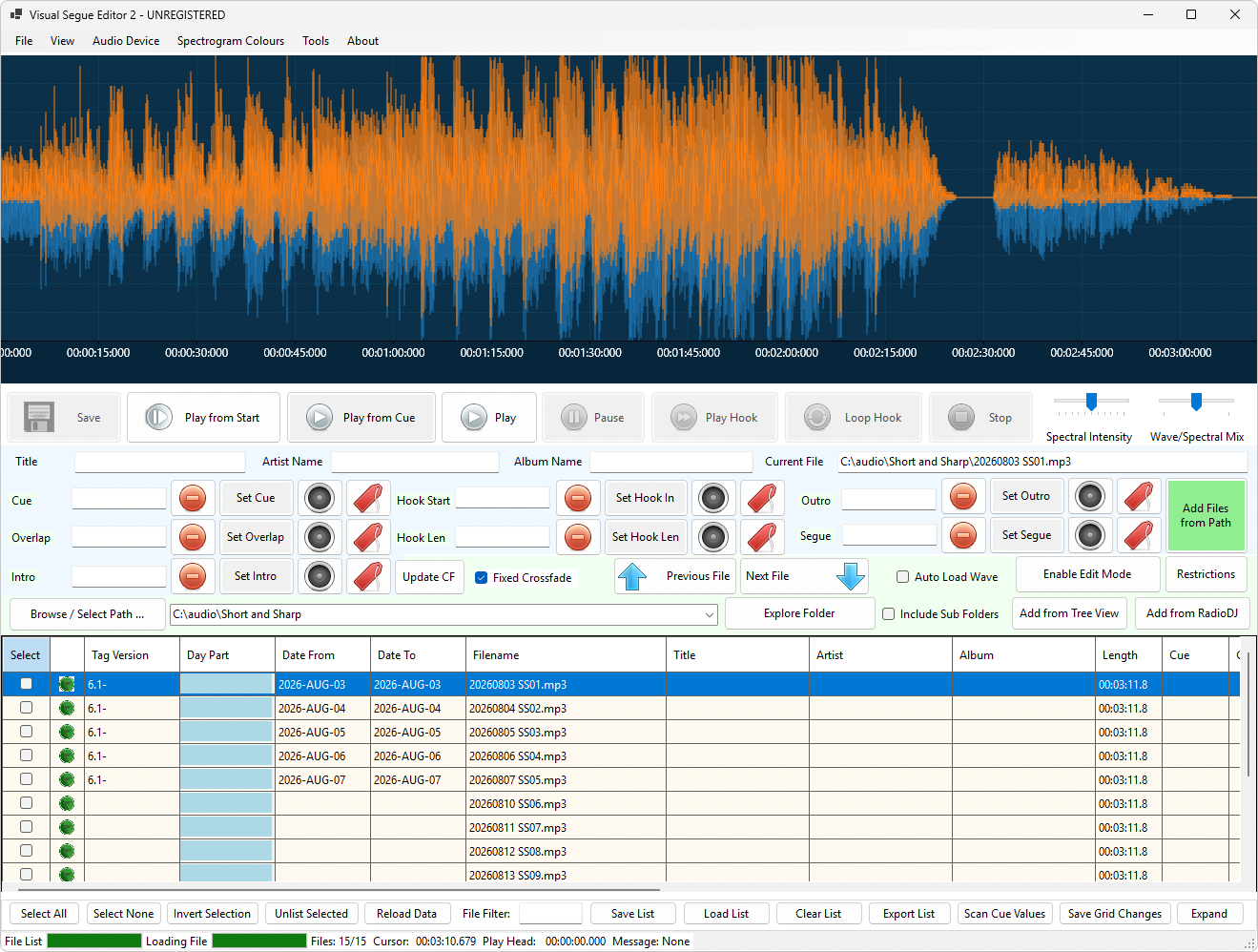
Yes! This was one of the biggest motivators to get this version ready. If your files have the prefix of YYYYMMDD then you are ready to go! You can adjust the stop and start dates of hundreds of files with the click of a button – all needing their own stop and start date.
Something is not working as I expected?
Please submit a support ticket and I’ll take a look at your query.
What are the licence conditions?
Each licence covers up to 3 Windows installations in a single location. (A laptop that travels counts against its home location’s licence.) For larger deployments, contact us about bulk licensing.
A “Windows installation” means one running copy of Windows — whether that’s a physical PC or a virtual machine. So a single computer running 30 Windows virtual machines, each with VSE installed, would need 10 licences (30 installations ÷ 3 per licence).
In a typical radio station, 1 licence is usually enough — it can be spread across 3 computers, such as your production machine, your scheduler, and the PD’s PC.
The licence is perpetual. It cannot be transferred to another party without written permission from Blue Tomato Media.
Complimentary email support will be offered for 30 days of a licence being purchased.
Minor upgrades and bug fixes will be provided as required for free, to paid registered users.
Refunds will only be considered within 14 days of purchase and if the licence key has not been activated, on a case-by-case basis.
Third Party Library Credits
This software would not be possible without the use of the following software libraries: NAudio (with LAME MP3 encoding), ScottPlot, Spectrogram, Newtonsoft.Json, and TagLib#.
Future Roadmap:
- Maybe supporting other audio radio station software (long term)
Reviews:
“It helped me sort out my song library in double quick time, and gave me real accuracy for those all important items like Intro, Hooks and Segues. Excellent 10/10”
– Artie Stevens – Radio Bayside Melbourne
Installation Instructions:
Unzip the download file and then run the filename called setup.exe to install the program. Windows may list this as an “Application” type. Windows may also present you with a security warning that the application is not signed, this is normal, and you can choose to ignore it. You will need administrator writes to install the program.
Also, when you come to register the program, make sure that it is not run from a path that is read-only, as the registration will not proceed correctly.
Upon purchasing, you will receive a serial number, that will active the software, which must be registered online.
Price is in US Dollars
Download Now:
Visual Segue Editor Version 2
Help
Read the online help
History
Current Version is v2.0.4
Download Release Notes.txt


Reviews
There are no reviews yet.